We’re a quarter of the way through the 21st century. Your phone is not just a camera any more, let alone just a phone. It’s now a self-contained video production powerhouse. It lets you shoot, edit and add graphics all with one, relatively affordable piece of kit. You can’t do everything with a phone, and there are times when you need to hire a professional crew with professional kit (hi!) but sometimes a phone is enough, or is necessitated by the schedule or budget. If that’s the case, here’s our pick of the best apps to use.
As you’ll see, most use a ‘freemium’ model with a limited free version and a pro upgrade. But we were surprised by how powerful the free options are. Feel free to skip ahead if you just want to see the pros and cons of our top five.
Adobe Express
Formerly known as Adobe Spark, Adobe Express works in-browser and on iOS devices. Its intuitive design means anyone can get to grips with it, regardless of whether they’ve edited a video before. Videos are broken up into “scenes” which could contain photos, videos, text, stock assets, voiceover, or any combination of the above.

Even if you don’t use Adobe Express to edit your content, the captioning tool is very handy for adding subtitles to a finished video. It generates the captions automatically, then you can tweak them for accuracy and style.
The free version is surprisingly robust and will be enough for a lot of people, but Adobe Express Premium is worth the £10 a month for the brand management features alone. You can upload your logos, colours and fonts and instantly create bespoke branded videos and graphics. If you have any Adobe Creative Cloud subscription then Express Premium is included, so get stuck in!
Canva
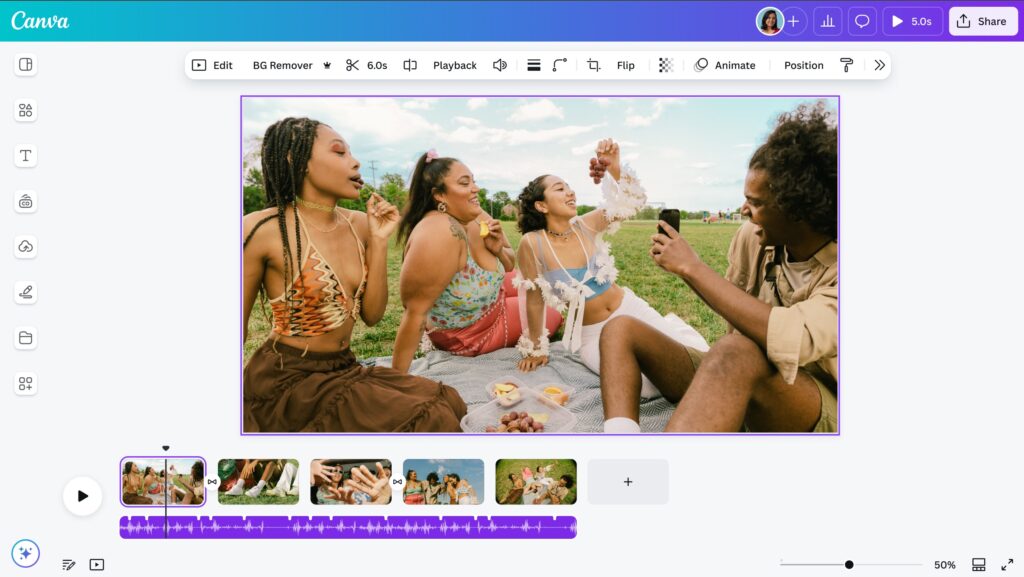
If you make DIY videos or graphical assets, chances are you’ve already given Canva a go. Like Adobe Express, it uses a simple drag-and-drop interface and you can move seamlessly between the desktop website and mobile app. Some users comparing the two have suggested that Canva has a wider range of templates available, but honestly we don’t think there’s much in it.
Our advice is to stick with Canva if you’re already using it, but use Adobe Express if you have an Adobe subscription already. The free version of Canva is pretty nifty, and the Pro version is very powerful for £13/month (or £100/year).

Adobe Premiere on iPhone
Premiere Pro (the desktop version) is a seriously powerful tool that I’ve been using for over a decade. The catch is that it comes with a steep learning curve and a hefty monthly price tag. But don’t worry! The Premiere iOS app is free, except if you need more storage or generative AI credits. Adobe describe it as “fast, free and focused” and that’s pretty accurate for what this app is. It’s deliberately simple and feature-light compared to the likes of Canva. (Which might sound bad but trust me, it’s good.)


Despite being quite basic on its own, the Premiere app has a secret superpower. Because with the paid version of Premiere Pro (about £20 a month) you can start a project on the mobile app and transfer it to the much more advanced desktop version. This is great for things like event highlights, where you might want to produce a quick reel on the day as well as creating a more polished edit later. It’s also ideal if you want to start off at a beginner level but upskill down the line.
And before you ask, no – unfortunately there’s no Android version available at the moment.
iMovie
A quarter of a century old and still going strong, Apple iMovie is available for free on iOS and macOS. Well built and packed with features, it’s easy to use for beginners but robust enough to keep experienced editors happy. Plus it plays nicely with the rest of the Apple ecosystem and is optimised for iPhone cameras. As a fully free app, this is as good as it gets.

Quik
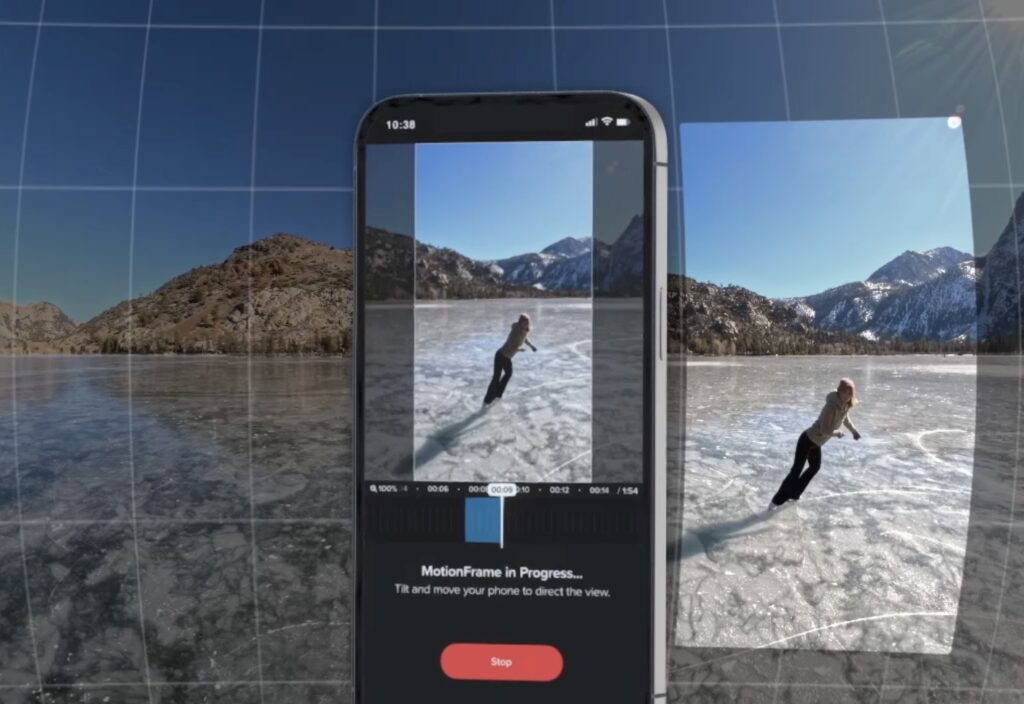
This is probably the best video editing app you’ve never heard of. Available on iOS and Android, the Quik app offers a smart combination of automated and manual features. You can set your footage to upload to the cloud and generate an automatic highlights video, then tweak it if you want to.
If you’re lucky enough to have a 360 camera, that’s where Quik really shines, with innovative features like MotionFrame. You can physically move your phone to follow the action perfectly.

What about CapCut?
Developed by ByteDance, the Beijing-based tech giant that brought us TikTok, this has been a popular free option for the past five years, especially for personal TikTok videos. I’m not going to review/recommend it properly here because they’ve chosen to double down on their AI-generated features. Aside from the general ickiness that Gen AI makes me feel, I don’t think it can be considered a ‘serious’ video editing tool if the emphasis is on automation.
Our top five, compared
| App | Pros | Cons |
| Adobe Express | Straightforward to use; access to Adobe Stock videos and images | Desktop browser-based experience can feel slow at times |
| Canva | Intuitive drag-and-drop process; lots of templates | The templates can make videos feel overly ‘homemade’ |
| Premiere on iPhone | Free (except AI features and additional cloud storage) and works with the paid Premiere Pro desktop app | Harder to create branded videos compared with Canva and Adobe Express |
| iMovie | Free and works with macOS app | No good for Android/Windows users |
| Quik | Innovative 360º features | Primarily designed for GoPro cameras |
Hopefully this gives you a useful overview of what’s out there in 2026 for your video editing needs. I’d encourage you to try two or three of them out to get a feel for what you do and don’t need. Don’t jump into using all the bells and whistles – just start simple. Oh, and it goes without saying that when it comes to more polished video projects, you will need more than just an app. You’ll need professional software at the hands of a professional human, and all the years of experience they bring to it. If you need help beyond what the apps can offer, please feel free to get in touch.